Signals and the trend
Search for Items, add them to the Details Pane, and view them on the trend. This page covers Signals, Conditions and Scalars. Conditions and Scalars are usually Calculated Items. See Formulas and Calculated Items.
Finding Signals
Open the Data tab of the tool panel and type in Search Signals. After a short pause, plintz lists every Item whose name contains what you typed, ignoring case, ordered by name. It searches names only, not descriptions.
- Search finds the Stored Signals of every Datasource, and the Calculated Signals, Conditions and Scalars of the open Analysis. A Calculated Item is found only in the Analysis it was created in.
- A result shows the Item's name, its unit and, for a Stored Signal, its Datasource, and its description if it has one.
- An Item that is already in the Details Pane is greyed out, with the tooltip "Already in the Details Pane".
- Search doesn't find an Item in the Trash.
- Search finds a Stored Signal once Indexing has copied it from its Datasource. Indexing runs periodically, every five minutes by default, so a Stored Signal just added to the Datasource may not be found until the next run.
Search is unavailable with Read access because the tool panel is hidden. See Sharing and permissions.
Adding Signals to the Details Pane
Click a result to add it. The Details Pane, under the trend, lists the Items on the trend, in the order you added them. Each row has a checkbox to select it, the Item's color, its name, its unit, its Datasource (for a Stored Signal), its Lane, its Y-Axis, and these buttons:
- ⓘ opens the Item's properties. See Item properties.
- ƒ opens a Calculated Item's Formula to edit. See Formulas and Calculated Items.
- × removes the Item from the Details Pane. The Item itself stays, and you can find it by search again.
Hover an Item's name for its description.
Lanes
The trend stacks Lanes from top to bottom. Each Signal or Scalar you add gets a new Lane at the bottom. To overlay Items, pick the same Lane number in the Details Pane's Lane list. The list offers one number for each Signal and Scalar in the Details Pane. A Lane left without Items closes, and the others move up.
A Condition has no Lane or Y-Axis. Its Capsules appear as bars above the Lanes, one row per Condition, with the Condition's name beside them.
One Lane
To move multiple Signals or Scalars into one Lane, select them with the checkboxes in the Details Pane and click One Lane in the trend's toolbar. The button appears only in the Trend view. plintz moves the selected Items to the lowest-numbered Lane they occupy. Each Item keeps its Y-Axis minimum and maximum. Lanes left empty close, and the remaining Lanes move up and are renumbered. If no Signal or Scalar is selected, One Lane acts on all of them. It ignores Conditions. One Lane is a plain action, never shown as pressed: each click acts, and only Undo reverses it. To give the Items their own Lanes again, use Spread.
The selection isn't saved with the Worksheet, and it is cleared when you open another Worksheet. With Read access, One Lane works but isn't saved, as with other changes to the display.
Spread
Spread in the trend's toolbar, next to One Lane and One Y-Axis, gives each selected Signal and Scalar its own Lane and an auto-scaled Y-Axis. It drops any minimum and maximum you fixed. It acts on the Items selected in the Details Pane, or on all Signals and Scalars if none is selected, and ignores Conditions and Items that aren't selected. Each Item leaves its Lane for a new one directly after it, in the order of the Details Pane. Lanes left empty close. The button appears only in the Trend view. Undo reverses it, and with Read access it works but isn't saved. Like One Lane, it is a plain action, never shown as pressed.
Y-Axes
Each Signal and Scalar has a Y-Axis drawn in its color, which auto-scales to its values in the Display Range. To fix one, type a minimum and a maximum under Axis Min / Max and click Set. Both must be numbers, and the minimum must be below the maximum. Click Auto to auto-scale it again.
One Y-Axis in the trend's toolbar fixes the Y-Axis of the selected Signals and Scalars, or all of them if none is selected, to one shared minimum and maximum. Like One Lane, it is a plain action, never shown as pressed: each click acts, and only Undo reverses it. Spread auto-scales the Y-Axes again.
Choosing a Worksheet view
The toolbar's four icon buttons choose the Worksheet view: Trend, XY Plot, Chain View or Table. The active view is shown as pressed. The Worksheet saves its chosen view.
Capsule Time is a separate toggle, available only in Trend. Choosing another view turns Capsule Time off; choosing Trend again does not turn it back on.
XY Plot
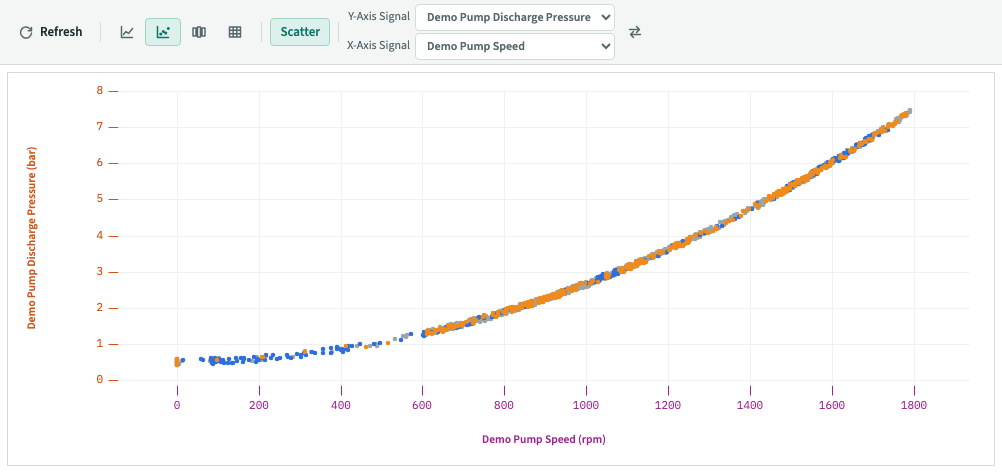
Choose XY Plot to plot one Signal's values against another over the Display Range. Scatter is the available plot type. The toolbar has a Y-Axis Signal selector, an X-Axis Signal selector and a button to swap them.
The selectors offer Stored and Calculated Signals in the Details Pane. They don't offer Conditions or Scalars. By default, the first Signal in Details Pane order is X and the second is Y. The two axes can't use the same Signal. Choosing the Signal already assigned to the other axis swaps them. If an axis's Signal leaves the Details Pane, that axis uses the first Signal not assigned to the other axis. With fewer than two Signals, the plot asks you to add another from the Data tab.
Each point shows the two Signals' values at one time. plintz interpolates each Signal using its Interpolation Method. It leaves out times where either Signal has no value because of a gap wider than its Maximum Interpolation or because the time is outside its Boundary Samples. The plot uses the Signals' Sample times unless their combined distinct times exceed the configured point limit. It then samples them on a uniform time grid. The default limit is 150,000 points. An operator can change max_points in the deployment config.
Each axis scales to its Signal's values in the Display Range, with 8% padding. The axis title shows the Signal's name and unit. Its title and tick labels use the Signal's color. Point color shows relative time in the Display Range: grey for the oldest half, blue for the next quarter and orange for the newest quarter. These buckets divide the time range, not the data. The plot has no legend, and Uncertain Data points look like other points. It draws smaller points when it shows more than 8,000. The XY Plot has no hover tooltip.
Changing an axis Signal or the Display Range fetches the points again. Refresh and Auto Update also fetch them again. Under Auto Update the plot excludes the Display Range's end, as the Trend does. The range bars, Details Pane and Capsules Pane stay available, but Trend-only controls are hidden. The Details Pane's Value column shows a dash.
Reading the Trend
The trend shows the Display Range from left to right. Signals and Scalars are drawn in their Lanes, and Conditions' Capsules above them.
- Interpolation. Each Signal is drawn by its Interpolation Method: Step holds a value until the next Sample, Linear and PILinear draw straight lines between Samples, and Discrete draws the Samples alone, as dots.
- Gaps. Where two consecutive Samples are further apart than the Signal's Maximum Interpolation, the Signal is drawn with a gap. A Sample with no line to it, such as one alone between two gaps, is drawn as a dot.
- Uncertain Data. A Signal draws its Uncertain Data dashed, and a Condition its uncertain Capsules hollow. Uncertain Data is the most recent data, which may still change. A Stored Signal's Uncertain Data begins one Uncertainty Lag before now, and a Sample exactly there is Uncertain Data. Its Datasource sets the Uncertainty Lag, and an Administrator can replace it with an Uncertainty Override: see Item properties.
- Scalars. A Scalar is drawn as a horizontal line across the Display Range, in a Lane and against a Y-Axis of its own, so you can compare a Signal against a threshold. A Scalar with no value, such as
1/0, draws nothing. - Capsules. A Capsule appears as a filled bar. If it starts before the Display Range, the bar begins at the Display Range's start. If it ends after the Display Range or is still in progress, the bar ends at the Display Range's end, or at now if now is earlier.
- The hover cursor. Move the pointer over the trend. A line crosses every Lane. Each Signal and Scalar with a value there has a dot on its line and a label with its value and unit. A Signal's value is a Sample's own, or between Samples the value its Interpolation Method gives; there is none in a gap or, for Discrete, between Samples. The time is shown on the time axis. Values show four significant digits, in scientific notation for a magnitude of 1e6 or more, or under 1e-4.
The Refresh button fetches the Samples and Capsules of the Display Range again, to pull in the latest data.
Change the Display Range to change what the trend shows. Drag across the trend to zoom, drag the time axis to pan, or scroll over the time axis to zoom. See Time ranges. While data loads, the toolbar says "Loading…", and errors appear there.
Capsules Pane
Under the trend, next to the Details Pane, the Capsules Pane lists the Capsules of the Details Pane's Conditions that are in the Display Range. Each row has the Condition, the Capsule's start and end in your Time zone, its duration, and one column for each property the listed Capsules have. A Capsule that starts or ends outside the Display Range shows "starts off-screen" or "ends off-screen", and no duration. A hollow swatch marks an uncertain Capsule.
The rows are listed by start. Click a column's header to sort by it, ascending, and again for descending. Capsules without a duration, or without a value for a property, go last either way.
Click a Capsule to select it. The trend outlines its bar and shades the Lanes over it with a band in the Condition's color. Click it again to clear. The selection isn't saved with the Worksheet.
Durations show as days, hours, minutes and seconds, such as 2d 3h 5.25s.
Capsule Time
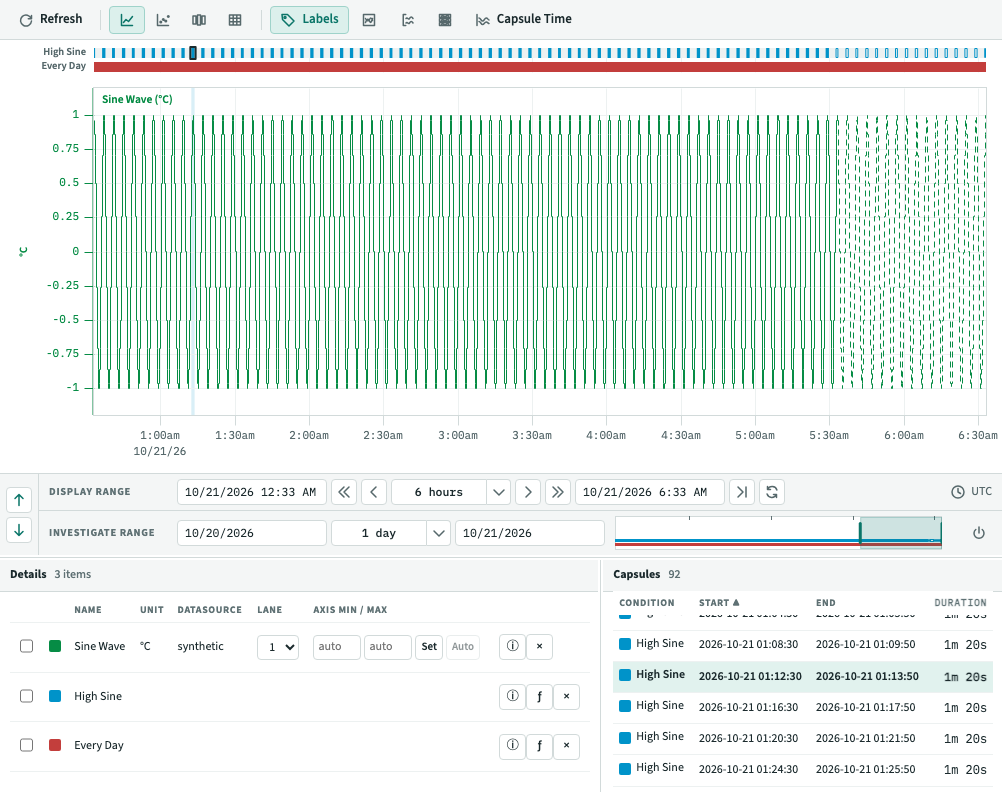
Capsule Time overlays a Signal's data from each Capsule of a Condition, as time since the Capsule's start, to compare Capsules with each other. The button is available once the Details Pane has at least one Signal and one Condition. Click it again to go back.
- Each Signal is drawn once for each Capsule of the Condition chosen under Align on, in its Lane and color, within the Capsule only. Until you choose one, or when the chosen Condition is removed, it aligns on the first Condition in the Details Pane.
- Capsules that start or end outside the Display Range are left out. In the Capsules Pane, they show an orange
i, whose tooltip says "This capsule is not displayed on the trend as it is only partially within the view range. Zoom out to include it." If none is fully inside the Display Range, the toolbar says "No Capsule is fully inside the Display Range." - A Scalar's line is drawn within each Capsule.
- The time axis shows the Capsule Time Range, which at first fits the longest Capsule. Drag across the trend, drag the time axis and scroll over it as you do for the Display Range. Choosing another Condition to align on fits it again.
- The hover cursor shows only the time since the Capsules' start.
- The Display Range and the Investigate Range keep working under the trend, as they do outside Capsule Time.
Capsule Time, the Condition and the Capsule Time Range are saved with the Worksheet.
Chain View
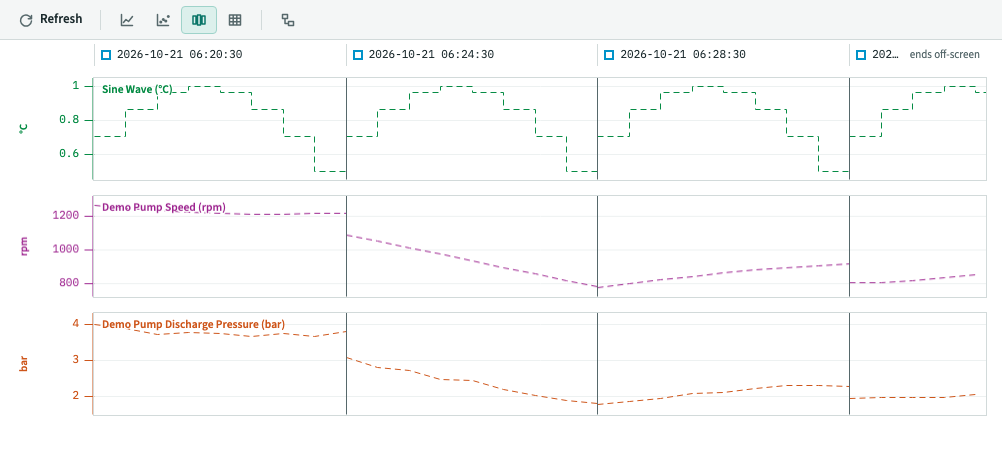
Chain View shows the Details Pane's Signals only during the Capsules of its Conditions, side by side, so that steady state doesn't hide what happens in them. Its button is always available. Without a Condition or without a Signal in the Details Pane, the toolbar says "Chain View needs at least one Condition and one Signal in the Details Pane." Opening it turns Capsule Time off.
- Select Conditions with the Details Pane's checkboxes to show only their Capsules, in Chain View and in the Capsules Pane. With no Condition selected, all of the Details Pane's Conditions count. Selecting Signals changes nothing here. Outside Chain View the Capsules Pane lists every Condition's Capsules. The selection isn't saved with the Worksheet.
- Tie a Signal to a Condition with the toolbar's Group toggle, so that the Signal shows only during that Condition's Capsules. While the toggle is on, each Signal row in the Details Pane has a Group selector listing the Conditions there, or All for no Condition. A Condition with no Signal tied to it shows all Signals not tied to another Condition. A Condition with a Signal tied to it shows only the Signals tied to it. The ties apply whether the toggle is on or off. The toggle only shows or hides the selectors and isn't saved. A Signal tied to a Condition excluded by your selection doesn't appear in any Capsule. The Worksheet saves ties. It drops a tie when its Signal or Condition leaves the Details Pane.
- Each Capsule of the Details Pane's Conditions is laid left to right in order of start, as wide as its duration, with the time between Capsules left out. Capsules that start together stay in the Details Pane's order. Thin lines mark where one Capsule ends and the next begins.
- Above each Capsule, a header shows its Capsule's start, with a marker in its Condition's color: filled for a certain Capsule, hollow for an uncertain one. A header too narrow for its text cuts it short; hover it for the whole text.
- A Capsule partly outside the Display Range is clipped to it. Its header says "starts off-screen" or "ends off-screen".
- The Lanes and Y-Axes are the Details Pane's. Chain View draws Signals only, so a Lane holding only Scalars is left out.
- There is no pan or zoom: the Display Range decides which Capsules appear. Hovering a Capsule shows each Signal's value in a pill beside the cursor, and the time in a dark pill under the Lanes.
- Uncertain Data is dashed, as in Trend. It refreshes under Auto Update and with Refresh.
- If no Capsule is inside the Display Range, the toolbar says "No Capsule is inside the Display Range."
The view is saved with the Worksheet.
Table
The Table view lists the Items of the Details Pane as numbers rather than a curve. Its toolbar's Simple and Condition switch chooses the Table's type. Opening it turns Capsule Time off.
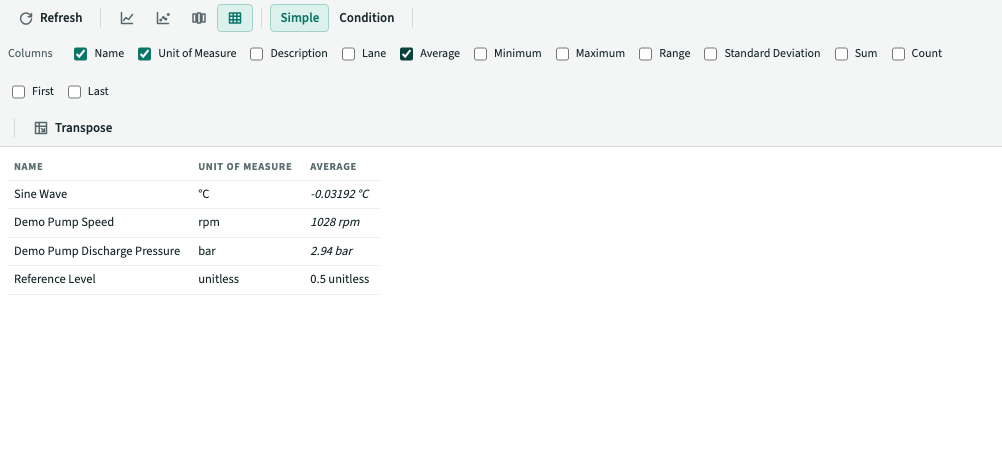
- A Simple Table has a row for each Signal and Scalar in the Details Pane, in its order. A Condition is not a row.
- Columns are Item properties: Name, Unit of Measure, Description and Lane; and statistics over the Display Range: Average, Minimum, Maximum, Range, Standard Deviation (the population one), Sum, Count, First and Last. A new Worksheet shows Name. Tick or untick a column to show or hide it; columns appear in the order you ticked them, so ticking a column again puts it last. A description is blank where an Item has none.
- A statistic shows in the Item's unit, with the numbers formatted as the trend's cursor shows them. It is blank where it is empty, as when the Display Range has no Sample of the Signal, and so are a Scalar's Sum and Count, as a Scalar has no Samples. A statistic that includes Uncertain Data, which may still change, is in italics, with the tooltip "Uncertain Data".
- Statistics are fetched again when the Display Range, the Signals and Scalars in the Details Pane or the columns change, on Refresh, and under Auto Update as the trend is.
- Transpose, off by default, swaps rows and columns: each property or statistic is a row, headed by its name, and each Signal or Scalar a column.
- If the Details Pane has no Signal or Scalar, or no column is ticked, the view says what it needs.
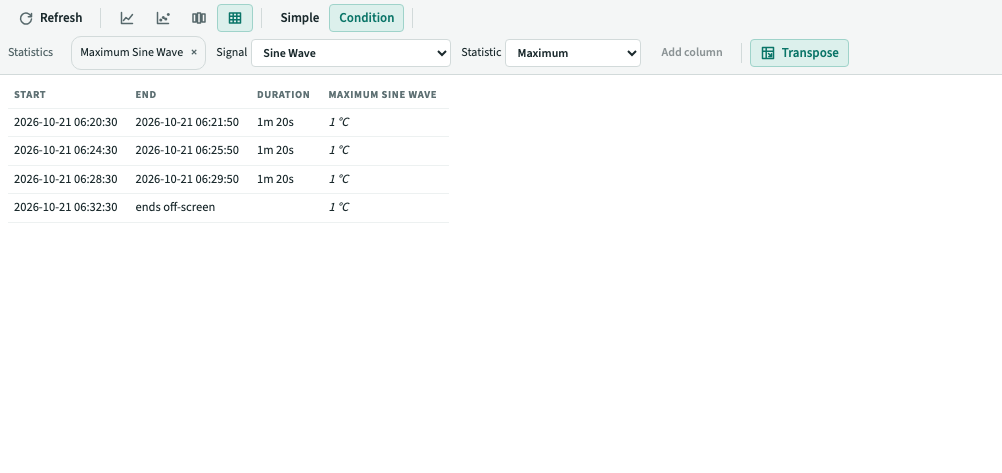
A Condition Table has a row for each Capsule of the Details Pane's Conditions in the Display Range, in start order. A Condition that appears twice gives its Capsules once.
- Columns are Start, End, Duration, the Capsules' properties, and the statistics you add. To add one, choose a Signal and a statistic in the toolbar and click Add column; each added column shows as a label with a × to take it out, and appears after the others in the order you added it. Taking a Signal out of the Details Pane takes its columns out.
- A statistic is the Signal's over each Capsule, in the Signal's unit, fetched for all the Capsules in one request, again when the Capsules, the Display Range or the columns change, on Refresh, and under Auto Update as the trend is. It is blank where it is empty, and in italics with the tooltip "Uncertain Data" where it includes Uncertain Data.
- A Capsule that starts or ends outside the Display Range shows "starts off-screen" or "ends off-screen" and no Duration, as the Capsules Pane does. Its statistics are over the part of it inside the Display Range.
- Transpose is on by default, so each Capsule appears in its own row. Turn it off to put Capsules across the columns. Start, End, Duration, each property and each statistic then appear as separate rows. Each type of Table has its own Transpose setting.
- If the Details Pane has no Condition, or the Display Range has no Capsule, the view says so.
The view, the type, the columns, statistics included, the Condition Table's added columns and each Transpose are saved with the Worksheet and restored when it is opened. With Read access they are shown but not saved.