Signal from Condition
Signal from Condition is a Tool that creates a Calculated Signal with one Sample for each Capsule of a Condition. Each Sample contains a statistic of a Signal or Condition within that Capsule, such as a daily average. The Tool writes a Formula with aggregate(). See Formulas and Calculated Items for details.
Using it
- Open the Tools tab, and choose Signal from Condition in the list.
- Type a Name.
- Choose the Signal or Condition: one in the Details Pane, or type in Search Signals to find a Stored Signal or a Calculated Item of the Analysis by name. A Scalar can't be summarized.
- Choose the Summary statistic, which is calculated over every Capsule of the bounding Condition. The form lists the statistics that fit the input: a Signal's are Average, Minimum, Maximum, Sum and Count, and a Condition's are Total Duration and Count. Until you choose an input it lists a Signal's. Choosing an input that the statistic doesn't fit empties it, and you choose another.
- For Total Duration, choose Convert time units to Seconds, Minutes or Hours. The new Signal is in that unit.
- Choose the Bounding condition, the Condition whose Capsules the Signal is summarized over. For a daily average, use a Condition with a Capsule for every day, which you can make with Periodic Condition.
- Fill Maximum capsule duration, the longest a Capsule can be to be used, with a number and a unit you choose: seconds, minutes, hours, days or weeks. Capsules longer than it are left out, and it becomes the Maximum Duration of the bounding Condition, not of an input Condition, which needs its own: give a Value Search one with its Maximum capsule duration. You may leave it empty when the Condition has a Maximum Duration already, as a Periodic Condition does; if it has none, the Formula fails, and the form says so.
- Choose where to Place each Sample at the Start, Middle or End of its Capsule.
- Choose the Interpolation Method of the new Signal: Step, Linear, PILinear or Discrete. This is how the new Signal is drawn between its Samples. Discrete shows only the Samples, which draw well as bars.
- Click Execute. plintz creates the Calculated Signal, adds it to the Details Pane and clears the form.
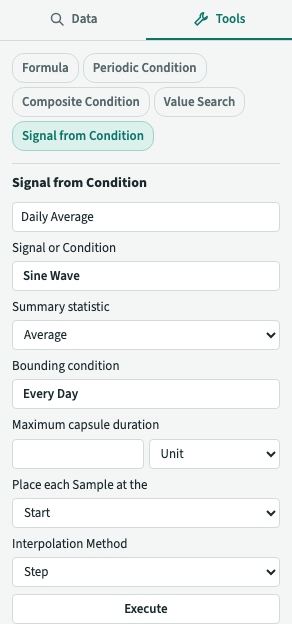
The choices
| Choice | Options | Formula |
|---|---|---|
| Summary statistic of a Signal | Average, Minimum, Maximum, Sum, Count | average(), minValue(), maxValue(), sum(), count() |
| Summary statistic of a Condition | Total Duration, Count | totalDuration('s'), totalDuration('min') or totalDuration('h'), count() |
| Convert time units to | Seconds, Minutes, Hours | 's', 'min', 'h', for Total Duration only |
| Place each Sample at the | Start, Middle, End | startKey(), middleKey(), endKey() |
| Interpolation Method | Step, Linear, PILinear, Discrete | toStep(), toLinear(), toPiLinear(), toDiscrete() |
The form opens with Interpolation Method set to Step. The Summary statistic, Convert time units to, Sample placement and Maximum capsule duration fields start empty. Choose the required values before clicking Execute.
What the new Signal is
- It has a Sample for each Capsule that has data in it. A Capsule with no data has no Sample, also for Count and Sum.
- It has the unit of the Signal, except Count, which is unitless. For a Condition, Total Duration is in the time unit you chose and Count is unitless.
- For a Condition, Total Duration sums the time its Capsules overlap each bounding Capsule. A Capsule partly inside the bounding Capsule contributes only its overlapping part. Count is the number of input Capsules that overlap it, so a Capsule crossing two bounding Capsules counts in both. If no input Capsule overlaps a bounding Capsule, the result has no Sample, not zero.
- Average is time-weighted for a Signal that is interpolated, and a plain average of its Samples for a Discrete one. The statistic is over the whole Capsule, not the Display Range.
- A Sample at the End of its Capsule sits where the next Capsule starts. Drawn Step, its value is then carried over that next Capsule: choose Start, or Middle, if you read a Sample as belonging to the Capsule it is in.
The Formula it writes
The Formula always names the function that sets the Interpolation Method, so you can see every choice with ƒ. For example, a daily average at the start of each day, drawn Step, with $signal bound to the Signal and $condition to the Condition:
$signal.aggregate(average(), $condition, startKey()).toStep()
With a Maximum capsule duration of 25 hours, the Condition is bound with removeLongerThan(), which leaves out the Capsules longer than that and gives it that Maximum Duration:
$signal.aggregate(average(), $condition.removeLongerThan(25h), startKey()).toStep()
With a Condition as the input, $condition is the input and $bounding the bounding Condition, and Total Duration in hours writes:
$condition.aggregate(totalDuration('h'), $bounding, startKey()).toStep()
To calculate equipment run hours per week, use a Condition for when the equipment runs as input, a weekly Condition from Periodic Condition as the bounding Condition, and Total Duration in Hours as the statistic. Place each Sample at the Start and draw it with Step interpolation.
aggregate() draws its result PILinear, so the Interpolation Method you choose changes how the new Signal is drawn and used by other Formulas, not its Samples. toPiLinear() is a Formula function like toStep(): see Formulas and Calculated Items.
The Item is an ordinary Calculated Signal: ƒ opens the Formula editor with the Formula above, not the Tool. See Tools.