Getting started
This page takes you from signing in to your first Signal on the trend. The Glossary defines the terms it uses.
Signing in
plintz has no passwords of its own. Open the address your organization uses for plintz. Without a session, the browser goes to your organization's login, and plintz opens once you have signed in.
- A session lasts 24 hours from the moment you sign in, whether or not you keep working. After that, the browser takes you through the login again.
- Log out, at the top right, ends your plintz session. It doesn't end your organization's own session, so the next login may not ask for your credentials.
- The theme button next to it switches between the light and dark themes. Your choice is kept in this browser; until you make one, plintz follows your system.
Your name at the top right comes from your organization's login, and the circle with your initials beside the theme button opens your Preferences. Click plintz at the top left to return to your Analyses from any page. Administrators also see an Administration link there. See Administration.
If an Administrator disabled you, your session ends and your login is refused with "login failed: the user is disabled". Ask an Administrator to enable you.
The Workbench
The Workbench is where you analyze. Open an Analysis to use the Workbench. From left to right and top to bottom, it has:
- Worksheet navigation, on the left, listing the Worksheets of the Analysis. See Analyses and Worksheets.
- The tool panel, with two tabs. Data searches for Signals, Conditions and Scalars and adds them to the Details Pane (Signals and the Trend). Tools has the Formula editor (Formulas and Calculated Items). You don't see it when you only have Read access to the Analysis.
- The trend, with its toolbar: Refresh, four icon buttons for the Worksheet view, and the separate Capsule Time toggle. It draws each Signal and Scalar in a Lane, and each Condition's Capsules above the Lanes.
- The Display Range and the Investigate Range, two bars under the trend. See Time ranges.
- The Details Pane, listing the Items on the trend, and the Capsules Pane, listing the Capsules of their Conditions in the Display Range.
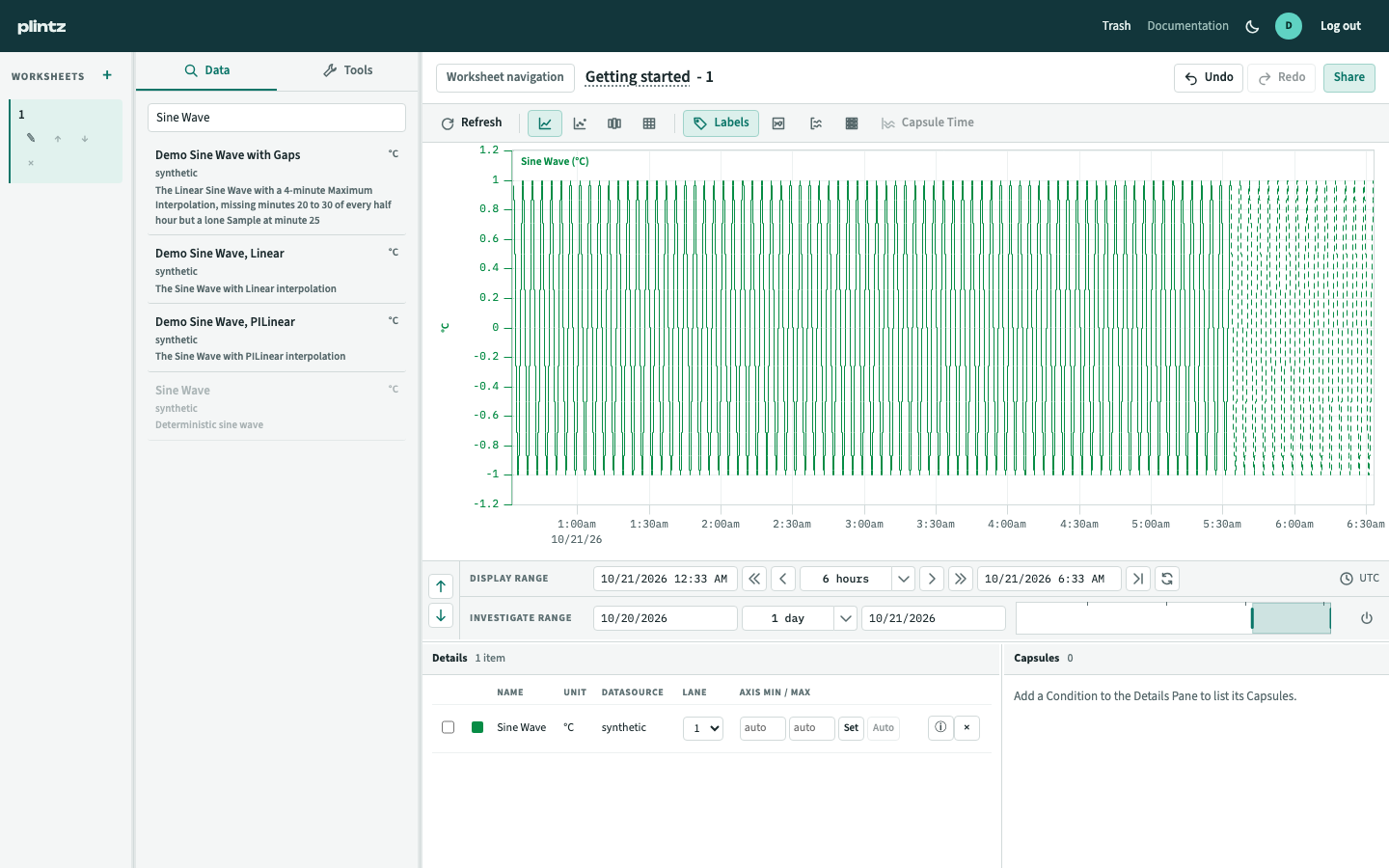
The title above the trend reads Analysis name - Worksheet name. The Undo and Redo buttons next to it step back and forward through the changes you made to the Worksheet. For an Analysis you own or have Manage access to, a Share button sits there too (Sharing and permissions).
Sizing the panes
On a screen 821 pixels wide or wider, you size the panes yourself. Drag a boundary between panes, or focus it and use the arrow keys (Up and Down between the trend and the lower panes, Left and Right between the others). Home and End go to the smallest and largest size. On the boundary of Worksheet navigation, Enter collapses and restores it.
The Worksheet navigation button beside the title also hides and shows the Worksheets.
This browser stores your pane sizes and whether Worksheet navigation is visible. These settings don't follow you to another browser or device, and they aren't part of the Analysis. On a screen 820 pixels wide or narrower, the panes are stacked, without boundaries to drag.
Your first Analysis
- On the Analyses screen, in My Folder, click New Analysis. plintz creates it, named after the time you created it, and opens its first Worksheet, which is empty.
- On the Data tab, type part of a Signal's name in Search Signals, and click a result to add it to the Details Pane. The trend draws it, over the last day.
- Drag across the trend to zoom the Display Range to what you dragged over. Drag the time axis, under the trend, to pan. See Time ranges for every way to change the ranges.
- Move the pointer over the trend. A line follows it, with the Signal's value at that time.
- To compute a new Signal from the one you added, open the Tools tab. See Formulas and Calculated Items.
plintz saves your changes to the Worksheet as you make them, so you can close the browser and come back to the Analysis from the Analyses screen. To let colleagues in, see Sharing and permissions.