Formulas and Calculated Items
A Calculated Item is defined by a Formula over other Items. plintz supports a subset of the Formula language. The Formula's result determines the kind of Calculated Item:
- a Signal makes a Calculated Signal, such as
$a + $b * 2; - a Condition makes a Calculated Condition, such as
$a > 20; - a time-independent value makes a Calculated Scalar, such as
10.
A Calculated Item belongs to the Analysis you create it in. You need Write access to the Analysis to create or edit one.
Writing a Formula
Variables
A Formula refers to other Items through $variables. A variable's name is a $, then letters, digits and underscores, and it doesn't start with a digit: $a, $flow_rate, $T2. Each variable is bound to one Item: a Stored Signal, or a Calculated Signal, Condition or Scalar of the same Analysis. A Formula may have no variables, such as 10 or days().
Syntax
- Numbers are decimal:
10,10.0,.1. A number can have a unit:1h,30 min,5kW,10m/s. - Strings are in single or double quotes. A backslash escapes a backslash or a quote.
- Arithmetic is
+,-,*and/, with unary minus. - Comparisons are
<,<=,>,>=,==and!=. They bind looser than+and-. - Conditions combine with
and,orandnot. They bind looser than comparisons,nottightest andorloosest. - Parentheses group, and
//and/* */start comments. - Functions are written either way:
$a.move(1h)ormove($a, 1h).
Hexadecimal and octal numbers, such as 0x1F and 013, aren't supported. Write a decimal number such as 13 instead.
The Formula box
The Formula box highlights the syntax as you type, in both the light and the dark theme: $variables, function names, numbers and their units, strings, comments and operators (+, -, *, /, the comparisons, and, or, not and the . of $a.move(1h)) each have their own color. When the caret is next to a parenthesis, it and its partner are marked. Typing ( adds the ) as well, and typing the ) yourself steps over it.
The box is a text box named "Formula", in the tab order: Tab leaves it for the next control, and Enter starts a new line. Highlighting follows the syntax above, so a Formula can be highlighted and still fail on Execute, for example with a function or unit plintz doesn't know.
Function suggestions
The box suggests function names as you type, and with Ctrl+Space, which opens the list without a letter typed. Each suggestion shows its parameters, and the selected one its description. Enter or Tab accepts the selected suggestion, the arrow keys choose another and Escape closes the list. Tab leaves the box as before when no list is open.
The list holds only the functions plintz implements, the ones in the table below, so every suggestion works. It is read from the server once for each session. If it can't be read, the box still highlights and works, but suggests no functions.
After a ., as in $a., it suggests the functions you can call that way on the variable: those whose first parameter takes that kind of value. $a. offers move() if $a is a Signal, and removeLongerThan() if it is a Condition, but not the other way round. Choose the variable's Item first, as the kind comes from it. Where the kind isn't known, for example after $a.move(1h)., every function that can be called that way is offered. The functions +, - and not call, such as add() and inverse(), aren't suggested: write the operator. intersect() and union(), which and and or call, are suggested, and so is subtract() of Conditions.
While the caret is inside a call, a hint above it shows the call's parameters, with the one the caret is on in bold. A function with several forms, such as periods(), shows each form that has a parameter there. A parameter is named by what it takes: Signal, Condition, Scalar for a number, Duration for a time such as 1h, String and so on, so move() shows as move(Signal, Duration). In $a.move(1h), $a counts as the first parameter, so 1h is the second.
Variable and unit suggestions
After a $, the box suggests the names of the variable rows above it, narrowed by the letters you type after the $, in the order of the rows. Each shows the kind of its Item, Signal, Condition or Scalar, once the Item is chosen. The list follows the rows as you add, rename or remove them. It opens as you type, and Enter or Tab accepts the selected name, as for functions. It works when the function list can't be read.
After a number, the box suggests units. Type a letter after 10, as in 10 k, to see kW, kWh and other units that begin with that letter. If you type an alias such as degc for °C, the box shows the matching unit. Press Ctrl+Space after a number to open the full list. Unit names are case-sensitive. Suggestions matching the case you typed appear first, followed by those that differ only in case. The server loads the unit names and aliases accepted by plintz once per session. If it can't load them, the box suggests no units but otherwise works as usual. Suggestions appear only for a unit immediately after a number, not for the second unit in a compound such as m/s.
A $variable in the Formula that has no variable row is underlined, as a syntax error is, with the message "Variable '$b' is not defined". It is marked half a second after you stop typing, and again when you add, rename or remove a row. A $variable with a row but no Item chosen is not marked: Execute asks you to choose one.
A syntax error is underlined as you type. Half a second after you stop typing, plintz checks the Formula and underlines errors where they occur. Hover over an underline to read the error message, such as "Unexpected input at '*', line=1, column=6". This check validates syntax only. It doesn't read data, require an Item for each $variable or create anything. Errors that depend on variable types, such as adding a Signal and a Condition, an unknown function or a variable row without an Item, appear only when you click Execute. If the syntax check fails, for example because the server is unavailable, plintz doesn't underline the Formula. The editor continues to work, and Execute still moves the caret to an error.
Calculations
| You want | Write | Makes |
|---|---|---|
| Arithmetic on Signals and Scalars | $a + $b * 2, $a / 60 |
a Signal |
| A comparison | $a > $threshold, $a >= 20 |
a Condition |
| Combine Conditions | $high and $running, $high or $low, not $high, $high.intersect($running), $high.union($low), $high.subtract($running) |
a Condition |
| Drop Capsules that are too long | $high.removeLongerThan(1h), $high.setMaximumDuration(1h) |
a Condition |
| Find when a Signal meets a criterion | $a.valueSearch(1d, isGreaterThan(5 kW)), $a.valueSearch(1h, isLessThanOrEqualTo($b)), $a.valueSearch(1d, isBetween(2.5 kW, 7.5 kW), 4s), $a.valueSearch(1d, isGreaterThan(5 kW), 4s, true, isGreaterThan(15 kW), 3s, true) |
a Condition |
| Drop short Capsules, or ignore short gaps | $high.removeShorterThan(5min), $high.merge(30s) |
a Condition |
| Leave out a Signal's invalid Samples | $a.validValues() |
a Signal |
| Capsules from the calendar | days(), hours(), days('Europe/Paris'), periods(10min, 1h), weeks('Monday'), months('Europe/Paris'), daysOfWeek('Monday,Friday') |
a Condition |
| One Sample for each Capsule | $a.aggregate(average(), $high, startKey()) |
a Signal |
| The total duration or the count of a Condition's Capsules in each Capsule | $running.aggregate(totalDuration('h'), $weeks, startKey()), $running.aggregate(count(), $weeks, middleKey()) |
a Signal |
| Shift a Signal in time | $a.move(1h), $a.move(-3h) |
a Signal |
| Change a Signal's unit | $a.convertUnits('ft'), $a.setUnits('ft'), $a.reduceUnits() |
a Signal |
| Change how a Signal is drawn | $a.setMaxInterpolation(2h), $a.toLinear(), $a.toStep(2h), $a.toPiLinear(), $a.toDiscrete() |
a Signal |
What each does:
- Arithmetic between Signals has a Sample at every Sample of any input, each input interpolated there by its Interpolation Method. An input with a gap, where its Samples are further apart than its Maximum Interpolation, has no value there, so the result has none either. A value that isn't a finite number, such as a division by zero, is left out. With a Scalar, the Signal's own Samples are kept. For example,
$a - $a.move(1h)compares a Signal with its value an hour before. - Units convert in
+,-and comparisons. The right operand converts to the left operand's unit, so1m + 1ftis1.3048m. A unitless operand takes the other operand's unit. Incompatible units cause an error, such as°C is not compatible with kW.*and/create compound units such askW·h. - Comparisons make a Condition with a Capsule for each stretch of time where the comparison holds. Each Signal is read with its Interpolation Method, so a Linear Signal's Capsule starts where its line crosses the other value. Where a Signal has no value, or a Sample's value isn't a valid number, the comparison doesn't hold, so a gap ends a Capsule. A comparison that holds only at one instant, such as
==where a Linear Signal crosses a value, has no Capsule. and,orandnotrequire Conditions with a Maximum Duration. Comparisons produce Conditions without one. Set a Maximum Duration withremoveLongerThan()orsetMaximumDuration(), as in($a > 20).removeLongerThan(1h) and ($b > 3).removeLongerThan(1h). Without a Maximum Duration, the Formula fails with "condition must have a maximum duration. Consider using removeLongerThan() to apply a maximum duration".A and Bhas a Capsule for each overlap between a Capsule ofAand one ofB.A or Bhas the Capsules of both, merged where they overlap or touch.not Aholds in the gaps betweenA's Capsules.A and Bhas the smaller input Maximum Duration.A or Bandnot Ahave no Maximum Duration. Before using either result inand,or,notoraggregate(), useremoveLongerThan()to give it a Maximum Duration.intersect(a, b),union(a, b)andsubtract(a, b)combine two Conditions. Each also works as a method, such as$a.intersect($b).intersect()is equivalent toand, andunion()is equivalent toor. They produce the same Capsules and Maximum Durations as those operators. You can nest method calls to combine more than two Conditions, such as$a.intersect($b).intersect($c).subtract()returns the parts of$athat$bdoesn't cover. A Capsule of$athat$bonly touches stays whole. A Capsule fully covered by$bis dropped, and a Capsule that contains a Capsule of$bis split in two. Like$a and not $b,subtract()requires a Maximum Duration for both Conditions and uses$a's Maximum Duration for its result. Its Uncertainty matchesand. The-operator applies to Signals and Scalars, not Conditions. Usesubtract()to subtract Conditions. See Composite Condition for the Tool that writes these functions. Other functions such astouches()andjoin()aren't available.removeLongerThan(d)andsetMaximumDuration(d)drop the Capsules longer than the durationdand give the Condition that Maximum Duration.valueSearch(d, criterion)creates a Capsule for each stretch of time when a Signal meets the criterion. It drops Capsules longer thand, a positive duration that becomes the Condition's Maximum Duration. Criteria includeisLessThan(v),isLessThanOrEqualTo(v),isGreaterThan(v),isGreaterThanOrEqualTo(v),isEqualTo(v),isNotEqualTo(v),isBetween(lo, hi)andisNotBetween(lo, hi). Each value can be a number with a unit or another Signal.isBetween(lo, hi)holds fromlo, inclusive, tohi, exclusive.isNotBetween(lo, hi)holds belowloor at and abovehi. The function uses the same units, interpolation and gap behavior as a comparison. For example,$a.valueSearch(1d, isGreaterThan(5 kW))is equivalent to$a > 5 kW, except that it drops Capsules longer than a day. A criterion alone doesn't create an Item. To compare Signals directly, write$a > 5, notisGreaterThan($a, 5). See Value Search for the Tool that writes this Formula.valueSearch(d, criterion, t)creates a Capsule only when the criterion holds for at leastt. For example,$a.valueSearch(1d, isBetween(2.5 kW, 7.5 kW), 4s)requires the Signal to stay in that range for at least four seconds. The Capsule covers the whole stretch, from when the criterion starts to hold until it stops. It doesn't start aftert. A stretch exactlytlong counts.valueSearch(d, entry, t, ignoreGaps, exit, exitT, exitIgnoreGaps)starts a Capsule when the entry criterion begins a stretch that lasts at leastt. It ends the Capsule when the exit criterion begins a stretch that lasts at leastexitT. For example,$a.valueSearch(1d, isGreaterThan(5 kW), 4s, true, isGreaterThan(15 kW), 3s, true)requires the entry criterion to hold for four seconds and the exit criterion to hold for three seconds. The exit search begins at the Capsule's start, so a stretch that began earlier counts from the Capsule's start. A Capsule may have no length. The entry criterion doesn't need to keep holding until the exit. The next Capsule requires a new entry stretch that starts after the previous Capsule ends. The function drops Capsules longer thand. A Capsule without an exit is in progress until the data reaches the exit criterion. Durations can be time values or0. Thetrueorfalsevalue after each duration controls how the function handles invalid Samples for that criterion.trueignores invalid Samples, asvalidValues()does and the Tool's Ignore signal gaps option does.removeShorterThan(d)drops the Capsules shorter thand, a positive duration, so a Capsule of exactlydstays. A Capsule still in progress stays. The Condition keeps its Maximum Duration, and needs none.merge(d)merges the Capsules that overlap, touch or start withind, zero or more, after the end of another, so it ignores gaps shorter thand:($a > 5).setMaximumDuration(1h).merge(1min)is one Capsule where the Signal dips below 5 for a minute or less. A gap of exactlydis ignored too. Likeor, it requires a Maximum Duration and makes a Condition without one, so write.setMaximumDuration()after it to bound the merged Capsules.validValues()leaves out Signal Samples whose values aren't valid numbers, so the Signal is interpolated across them.periods(d, period, offset, timeZone)has a Capsuledlong everyperiodfromoffset. Onlydis required.perioddefaults tod, so the Capsules are back to back.offsetis a time such as'2025-01-01T06:00:00', andtimeZonean IANA time zone such as'America/New_York', UTC unless given.hours()anddays()are back-to-back hours and days from midnight, in UTC or in the time zone you give. In a time zone, a duration in days is a calendar day, so a day is 23 or 25 hours long when the clocks change.weeks(startDay, timeZone, shift),workWeeks(timeZone, shift),weekends(timeZone, shift),months(timeZone, shift),quarters(timeZone, shift)andyears(timeZone, shift)create Capsules for weeks, work weeks, weekends, months, quarters or years in the given time zone, or UTC if none is given.weeks()requiresstartDay, a weekday name such as'Monday'. A week lasts seven days, a work week lasts five days from Monday to Friday, and a weekend lasts two days from Saturday to Sunday. Work weeks and weekends have gaps between them. A month, quarter or year follows the calendar. A quarter lasts three months, starting in January, April, July or October. The optionalshiftfollows the time zone and moves each Capsule's start and end by a duration such as6hor-1d. Capsules start at the same local time across clock changes. A week or month that includes a clock change is an hour shorter or longer.daysOfWeek(days, timeZone, shift),monthsOfYear(months, timeZone, shift)andquartersOfYear(quarters, timeZone, shift)have a day-, month- or quarter-long Capsule only for the ones listed: a string of names separated by commas,'Monday,Friday','January,March'or'Q1,Q3', where the names are English, in full and with a capital. The time zone and the shift are optional, as above. Neighbors listed together, such as Saturday and Sunday, have a Capsule each.- The calendar functions give the Condition the Maximum Duration its Capsules need, so it can be used in
and,or,notandaggregate()without setting one. aggregate(statistic, condition, key)has one Sample for each Capsule ofcondition, the bounding Condition, that has data. The input is a Signal or a Condition, and the statistic must fit it. For a Signal, the statistics areaverage(),minValue(),maxValue(),sum()andcount(). For a Condition, they aretotalDuration(unit)andcount(). The keys, which place the Sample, arestartKey(),middleKey()andendKey(). The bounding Condition must have a Maximum Duration, and so must an input Condition. A Capsule with no data in it has no Sample.average()is time-weighted. The result is drawn PILinear, with the Signal's unit, exceptcount(), which is unitless. To draw it another way, call one of the interpolation functions below on it, as the Signal from Condition Tool does.totalDuration(unit), for a Condition input ofaggregate(), is the sum of the durations of its Capsules inside each bounding Capsule, converted to the time unit, a string such as's','min','h'or'hours', which is the unit of the result:$running.aggregate(totalDuration('h'), $weeks, startKey())is the hours a Condition holds in each week. A Capsule only partly inside a bounding Capsule counts for the part inside it. A unit that isn't a time unit fails withInvalid unit '…', or with a message thattotalDuration()takes a time unit.unitis required.count()of a Condition is the number of its Capsules that overlap each bounding Capsule, so a Capsule across two bounding Capsules counts in both. A bounding Capsule that no Capsule of the input overlaps has no Sample, not a zero, as for a Signal.totalDuration()of a Signal oraverage(),minValue(),maxValue()orsum()of a Condition fails with a message that the statistic is of the other.move(d)shifts each Sample later byd, or earlier if it is negative. The Signal keeps its Interpolation Method, Maximum Interpolation and unit.convertUnits('ft')converts values to a unit.setUnits('ft')assigns a unit without changing values, andsetUnits('')removes the unit.reduceUnits()reduces a compound unit to the first unit in its dimension. An unknown unit fails withInvalid unit '…'. plintz accepts the unit names and aliases available in the Formula editor.setMaxInterpolation(d),toLinear(),toStep(),toPiLinear()andtoDiscrete()draw a Signal with another Maximum Interpolation or Interpolation Method in this Analysis only.toLinear(d),toStep(d)andtoPiLinear(d)also set the Maximum Interpolation tod.dis a positive duration. To change a Stored Signal for every Analysis, an Administrator uses an override: see Item properties.
A Calculated Item inherits the uncertainty of its most uncertain input, so it draws dashed, or hollow, where its inputs are uncertain.
A Calculated Scalar has no Samples. It is a single value, such as a threshold. One that isn't a finite number, such as 1/0, has no value and draws nothing.
Any other function call fails with "Function 'name' was not found or was archived". A call with unsupported arguments fails with "No variant of function 'name' consumes the parameters (…)". Only the functions in the table above are available, and they are the ones the Formula box suggests.
Creating a Calculated Item
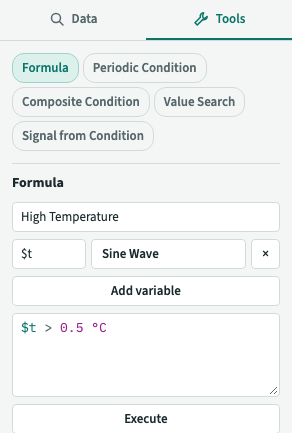
- Open the Tools tab of the tool panel. It lists the Tools, and the Formula Tool, the Formula editor, is selected.
- Type a Name.
- For each
$variablein the Formula, click Add variable. Type its name, such as$a, and then choose its Item in the list under it. The list offers the Items in the Details Pane. Type in Search Items to find another Stored Signal or a Calculated Item of the Analysis by name instead. Once chosen, its name shows on a button: click it to choose another Item. × removes the variable. - Type the Formula in the Formula box, such as
$a + $b * 2, accepting the function suggestions it offers. See The Formula box. - Click Execute, or press Ctrl+S (Cmd+S on a Mac).
plintz creates the Calculated Item in the Analysis, adds it to the Details Pane and clears the editor for the next one. A Calculated Signal then trends like a Stored Signal. A Calculated Condition shows its Capsules, and a Calculated Scalar is a horizontal line in a Lane of its own. See Signals and the Trend.
If the Formula has an error, plintz creates nothing. It shows the error under the box and moves the caret to it. Fix the error and click Execute again. If a variable has no Item, plintz asks you to "Choose an Item for" it.
For example, to see when a Signal named Temperature is above a threshold of 80:
- Create a Calculated Scalar named
Limitwith no variables and the Formula80. - Create a Calculated Condition named
Too hotwith$tbound toTemperatureand$limitbound toLimit, and the Formula$t > $limit.
You can use a Calculated Item as an input to another Formula. To change a threshold in one place, create a Calculated Scalar and edit its Formula.
Editing a Calculated Item
Click ƒ on the Item's row in the Details Pane. The Tools tab opens as Edit Formula, with the Item's name, variables and Formula. You can change the variables and the Formula, but not the name. Click Execute to save, or Cancel. The Calculated Items that use it read the change the next time they are computed, and the trend updates.
plintz rejects an edit, and keeps the old Formula, when:
- the Formula has an error;
- the Formula would make another kind of Calculated Item. A Calculated Signal stays a Signal, a Calculated Condition a Condition and a Calculated Scalar a Scalar;
- the Calculated Item would depend on itself, directly or through other Calculated Items. The error reads "Unable to set Formula because a circular dependency was found…";
- a Calculated Item that depends on it would fail with the new Formula. The error names it.
To see a Calculated Item's Formula without editing it, use ⓘ: see Item properties. The same dialog lists its Item Usages, the Calculated Items that would be affected by an edit.
If you have Read access, the Formula editor and ƒ aren't shown.